
Table of Contents
- What Is an NFC Card and How Does It Work?
- What You'll Need Before You Start
- Step-by-Step: Setting Up Your NFC Card for Google Reviews
- Using a Google Review Link Generator for Multiple Locations
- Best Practices for Google Reviews and NFC Card Placement
- Troubleshooting Common NFC Card Issues
- Conclusion
- Frequently Asked Questions
Last Updated: October 2, 2026
What Is an NFC Card and How Does It Work?
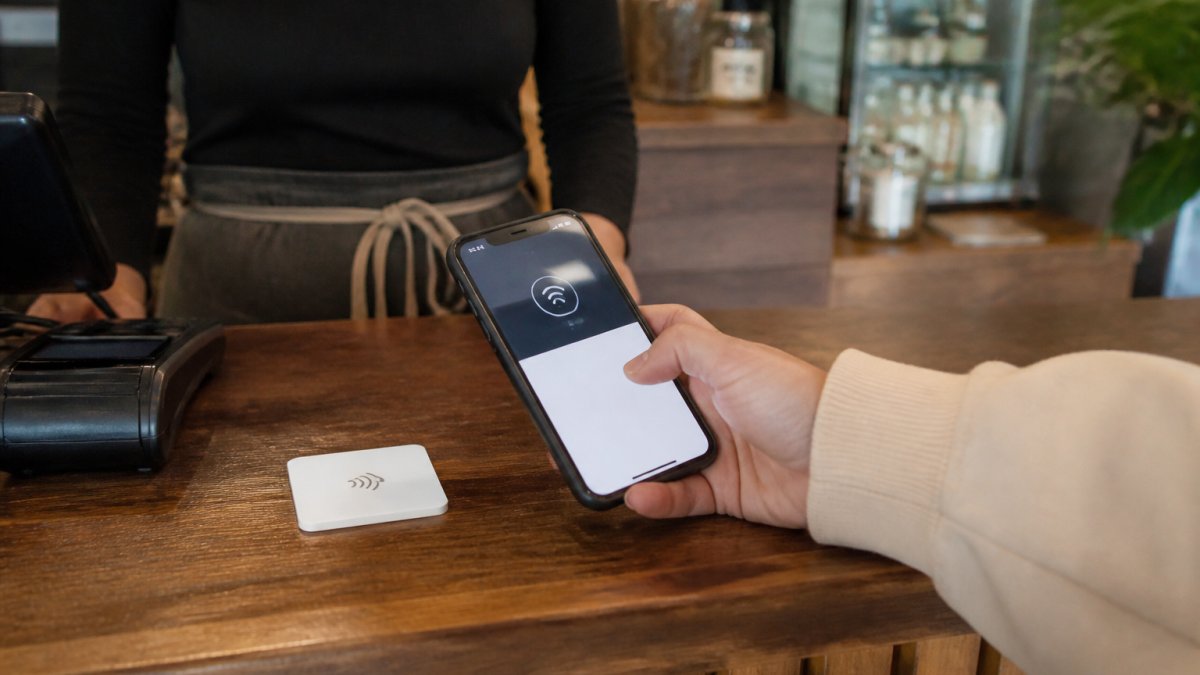
An NFC card is a small, reusable card embedded with near-field communication technology that lets customers tap their smartphones to access your Google Business Profile and leave NFC cards Google reviews. When a compatible phone comes close to the card, it reads a stored link and opens your review page, no app download required, no typing needed.
Understanding Near-Field Communication
Near-field communication is a wireless technology that transfers data over very short distances, usually a few inches (NFC Technology). Your NFC card contains a stored link. When a customer's NFC-enabled smartphone gets near the card, the phone's built-in NFC reader detects the signal and displays a notification with your review link.
The process is instant and passive. The card itself doesn't send anything, your customer's phone does the reading. This means the card has no battery or moving parts.
Why NFC Cards Simplify Review Collection
A spoken request for a review is easy to forget once a customer leaves. An NFC card keeps the request visible and actionable when satisfaction is highest. Typing a business name into Google Search, finding the right listing, and navigating to the review section stops many people from leaving feedback. An NFC tap removes all of that friction, your customer goes from tap to review in seconds.
Tapnivo's NFC cards Google reviews solution is designed for this exact moment, when customer satisfaction is highest and their phone is already in their hand.

What You'll Need Before You Start
Before using your NFC card, gather these items:
- A compatible NFC-enabled smartphone (most modern Android and iPhone models support NFC reading)
- Your Google Business Profile link (we'll show you how to get this)
- Your NFC card or cards ready to use
Most smartphones from the last 5 years support NFC. iPhones from iPhone 6 and newer support NFC reading.
Understanding NFC Tag Types and Storage Capacity
Tapnivo's NFC Google review cards are designed for review collection, so you don't have to worry about compatibility issues.
Smartphone NFC Compatibility
If you're setting up multiple cards for different locations or team members, you'll need one card per link. Each card stores one URL, so a multi-location business will need separate cards for each location's review link.
When testing, confirm that both Android and iPhone users can tap your cards. Android NFC readers are typically located in the upper third of the phone; iPhone readers (iPhone 6 and newer) are at the top. Instruct customers to hold the top of their phone near the card for the best result.
Step-by-Step: Setting Up Your NFC Card for Google Reviews
Step 1: Verify Your Google Business Profile
Before you can collect reviews, you need an active Google Business Profile. Log into Google Business Profile at business.google.com and verify your business information is complete and accurate.
Your business name, address, phone number, and category should all match what you want customers to see.
Step 2: Obtain Your Google Review Link
Your Google review link is a unique URL that takes customers directly to your review form. To find it:
- Open your Google Business Profile
- Click the "Reviews" section
- Look for the "Share" or "Get link" button
- Copy the full review link (it will be a long URL starting with google.com)
This link is specific to your business. When a customer taps your NFC card and the link opens, they'll see your business name, photos, current reviews, and the option to add their own.
Step 3: Program Your NFC Card
To write your review link onto an NFC card, use a free NFC writing app like TagWriter (Android) or Seritag (iOS):
- Download the app to your smartphone
- Select "Write" or "Create"
- Choose "Add a URL"
- Paste your Google review link
- Hold your phone near the card and tap "Write"
The app confirms when the data is written. You can write the same link to multiple cards for different locations or team members.
Step 4: Test Your Card
Test your card with your own phone and a friend's phone before use. Hold a compatible smartphone near the card, a notification should appear with your review link. Tap it and confirm your Google Business Profile review page opens. If the link doesn't open, re-write the card using your NFC app.
Using a Google Review Link Generator for Multiple Locations
If you operate multiple locations, you have two strategies: one card per location, or one card that routes to all locations.
Strategy 1: One Card Per Location (Highest Completion Rate)
Create a unique NFC card for each location. Program each card with that location's review link. When customers tap the card at Location A, they see Location A's review form.
This approach is simple and has the highest completion rate, customers tap and immediately see their location's review form with no extra steps. The downside: you need multiple cards in inventory and must train staff on which card goes where.
Strategy 2: One Card with a Landing Page (Scalability)
Instead of writing a Google review link directly to your card, write a link to a landing page that displays all your locations. When a customer taps the card, they land on a page showing your business locations.
This approach uses a link-in-bio service or a custom landing page. These services let you:
Tapnivo NFC Google Review Card – Tap Your Phone to Leave a Review →
- Host multiple links (one per location) on a single page
- Track which location gets tapped most often
- Update links without reprogramming cards
- Add other business information (hours, phone, website) alongside review links
Create a landing page with buttons for each location, link each to that location's Google review URL, then write the landing page URL to your NFC card.
Which Strategy to Choose
Choose one card per location if:
- You have 2-5 locations
- You want the fastest, frictionless tap-to-review experience
- Your staff can manage separate cards
Choose one card with a landing page if:
- You have 5+ locations
- You want to track which location drives the most reviews
- You want to add other information (hours, phone, website) to the card experience
- You want to update locations without reprinting cards
Many businesses use a hybrid: a landing page card at the front desk and location-specific cards at each branch. This gives customers a choice and lets you measure which approach works best.
Managing Cards at Scale
For enterprise deployments or businesses with many locations, consider assigning a unique identifier or QR code to each card. This lets you track which physical card drove which reviews. Some link-in-bio services allow UTM parameters in URLs, so you can tag each location's link with a source identifier. When a review comes in, you'll know which card and location generated it.
Tapnivo's NFC Google review cards work seamlessly with landing page services. Write your landing page URL to the card once, and you've created a scalable review-collection system that grows with your business.
Best Practices for Google Reviews and NFC Card Placement
Place your NFC card where customers naturally pause before leaving, checkout counter, table, host stand, or front desk. The best moment to ask for a review is right after the transaction when your customer is satisfied and their phone is in hand.
Rotate your cards if they get worn. NFC cards are durable, but constant handling can wear the surface. If a card stops working, replace it.
Don't rely on the card alone. Combine it with verbal requests, email follow-ups, or text reminders. The card is one tool in your review-collection strategy, not the only one.
Troubleshooting Common NFC Card Issues
Card doesn't respond when tapped: The most common cause is that the customer's phone isn't NFC-enabled or has NFC disabled.
Link opens but the review page doesn't load: This usually means the customer doesn't have an internet connection.
The card was written but now shows no data:
Customer taps the card and sees a different business's review page: This means the card was written with the wrong link.
Most issues resolve by re-writing the card or checking the customer's phone settings.
Conclusion
Setting up NFC cards for Google reviews removes the biggest barrier to customer feedback, friction. Your customers don't have to remember your business name, type a URL, or dig through search results. They tap and review.
The setup takes minutes: verify your Google Business Profile, get your review link, write it to your NFC card using a free app, and test it. From there, place the card where customers naturally pause and train your team to mention it.
Tapnivo's NFC Google review cards are built for small businesses that want a simple, one-time solution to collect honest feedback. No monthly fees, no app required, no complicated setup. Shop NFC Google review cards at Tapnivo and start collecting reviews the moment your customers are happiest.
Frequently Asked Questions
How do I program an NFC tag to open my Google review page?
Tapnivo NFC cards are connected to your Google Business Profile link when you order them. Your card then redirects any tap to your Google review page without requiring a separate app for customers to use.
Can one NFC card link to both Instagram and Google?
A single NFC card can store only one primary link. However, you can set up a landing page that displays both your Google review link and Instagram profile, then program the NFC card to point to that landing page. This gives customers one tap to access both platforms. Alternatively, use separate cards at different locations: one for Google reviews at checkout and one for Instagram near your social media display.
Do I need an app to set up NFC cards for my business?
You don't need an app for customers to use the cards. Tapnivo NFC cards work with your phone's built-in NFC reader, so customers simply tap and open your Google page directly. Tapnivo cards are pre-programmed, which eliminates the need for you to program them yourself.
What should I do if a customer's phone doesn't recognize the NFC card?
Not all phones have NFC capability, and some users may have NFC disabled. Ensure your phone's NFC is turned on in Settings. If the card still isn't recognized, the phone may not support NFC or the card may be damaged. Have a backup QR code or printed link available for customers whose phones can't tap. Test your card with multiple devices before deploying it to ensure compatibility with your customer base.
Ready to simplify how you collect Google reviews? Tapnivo NFC cards eliminate the friction between a satisfied customer and their review. Get your cards today and give your team an easy way to ask for feedback at the point of sale.