
Table of Contents
- What a Google Review NFC Card Is and Why It Beats a Spoken Ask
- What You'll Need Before You Start
- How to Set Up Google Review NFC in 5 Steps
- How to Get More Google Reviews With a Tap-to-Review Card
- Using a Google Review Link Generator (and When to Use NFC Instead)
- How to Ask Customers for Reviews Without Feeling Pushy
- Common NFC Problems and How to Fix Them
- Conclusion
- Frequently Asked Questions
Last Updated: September 28, 2026
What a Google Review NFC Card Is and Why It Beats a Spoken Ask
A Google review NFC card is a small physical card that holds a link to your Google Business Profile review page. When a customer holds a compatible phone near the card, the phone reads that link and offers to open it. No app, no typing, no searching for your business name.
That matters because the spoken ask is fragile. A customer says "sure, I'll leave a review" at the counter, walks to the car, and forgets. The moment passes. A tap-to-review card keeps the request alive while the customer is still standing in front of you.

At Tapnivo, we build these cards for salons, barbershops, restaurants, boutiques, and service shops that want a simple, reusable way to ask. The card does not write or post anything on its own. It just removes the friction between a happy customer and your review page.
Google Business Profile help center guidance on reviews
What You'll Need Before You Start
Setup takes about ten minutes and no technical background. Gather these items first:
- Your Google Business Profile, claimed and verified
- The review link for that profile
- An NFC review card or stand
- A compatible NFC-enabled phone for testing
- A stable internet connection
One thing to check early: your Google Business Profile must be verified before customers can leave reviews. If your listing is still pending, finish that step first.
How to Set Up Google Review NFC in 5 Steps
Setting up Google review NFC takes about ten minutes once you have your link. You find your review link, program the tag, test it on both phone types, place the card where customers pay, and train your team to ask.
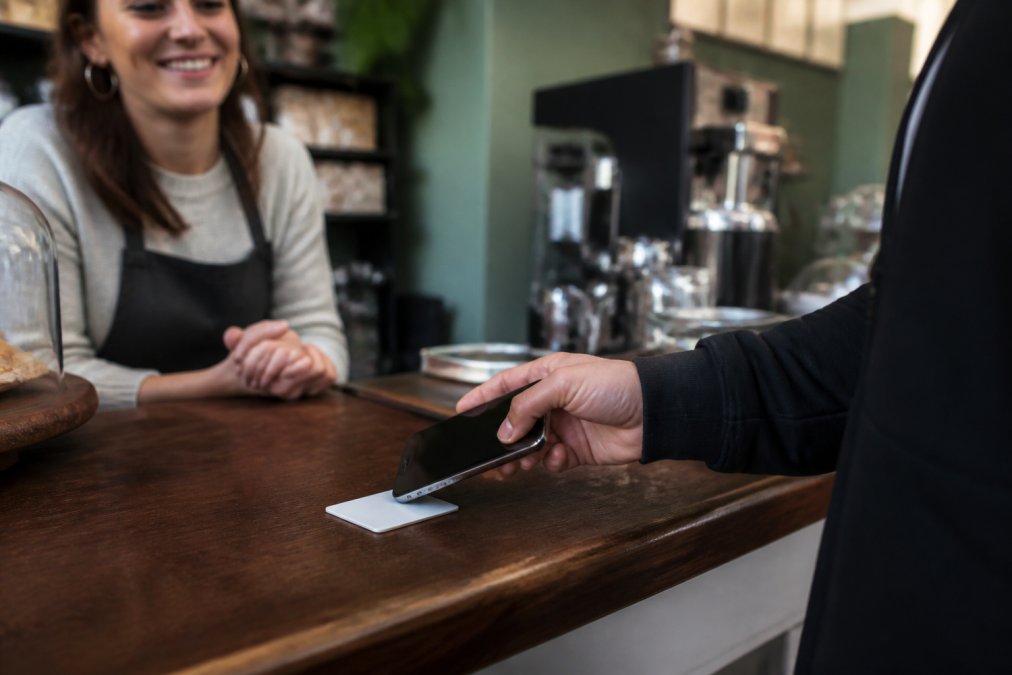
Step 1: Find Your Google Review Link
Open your Google Business Profile and look for the option to request reviews. Google provides a short link you can copy and share. Save that link somewhere you can reach it from your phone, like a notes app or your email drafts.
This link is the whole product. Everything else is just delivery.
Step 2: Program the NFC Tag
Most cards ship pre-programmed with your review link, so this step is often done for you. If you program your own tag, here is what actually happens under the hood.
The chip.
The record. You are not writing plain text to the tag. You are writing an NDEF (NFC Data Exchange Format) record with a URI payload. The writer app handles the encoding; you just paste the URL. The tag stores the link, and the phone reads it and hands it to the operating system, which offers to open it in a browser.
The writer app. On Android, common options include NFC Tools and TagWriter. On iPhone, NFC Tools works for writing on supported models. Open the app, choose "Write," select "URL/URI," paste your review link, then hold the top of your phone against the tag until the app confirms the write.
Lock it or leave it open. Most tags ship unlocked, meaning they can be rewritten later. You can set a lock bit to make the tag permanently read-only, which prevents tampering but also prevents you from ever changing the link. For a review card, leaving it unlocked is usually the safer default, you may want to point it at a different page later.
The dynamic URL angle most guides skip. Instead of writing your raw Google review link to the chip, write a short redirect URL that you control, for example, a link from a URL shortener or your own domain that forwards to your review page. The chip only ever knows the redirect. If your review link changes, or you want to point the same card at a different destination, you update the redirect and the physical card keeps working. This is the single biggest reason to avoid locking a tag.
If you would rather skip programming entirely, a card that arrives already connected to your listing removes the risk of a bad write. Tapnivo cards work this way: you provide your Google Business Profile link when ordering, and the card arrives ready to use.
Step 3: Test the Tap on Android and iOS
Test on both phone types before you put the card out. Tap the card with an Android phone and confirm the review page opens. Then do the same with an iPhone.
Tapnivo NFC Google Review Card – Tap →
Step 4: Place the Card Where Customers Pay
Put the card where the transaction ends. Good spots include:
- The checkout counter
- The reception desk
- Next to the card reader
- On the table with the bill
Step 5: Train Your Team to Ask at the Right Moment
The card works best when a person pairs it with a short ask. Teach your team one line: "If you enjoyed today, you can tap this card to leave us a review."
How to Get More Google Reviews With a Tap-to-Review Card
More reviews come from lowering friction, not from asking harder. Most customers are willing to leave a review. They just do not want to search for your business, scroll past three similarly named listings, and type a paragraph on a phone keyboard.
A few habits make the card work harder:
- Keep it visible at every payment point, not just the main register
- Mention it out loud once per customer
- Use a stand at the front desk so it does not slide around
- Replace a worn or damaged card right away
Using a Google Review Link Generator (and When to Use NFC Instead)
A Google review link generator creates a short, shareable link to your review page. You paste your business name or profile URL, and the tool returns a clean link you can text, email, or print.
| Method | Best For | Customer Effort | Works In Person |
|---|---|---|---|
| Text message link | Follow-ups after the visit | Medium | No |
| Printed QR code | Posters and table tents | Medium | Yes |
| NFC review card | Counters and front desks | Low | Yes |
| Spoken ask only | Anywhere | High | Yes |
How to Ask Customers for Reviews Without Feeling Pushy
The pushy version sounds like a demand. The easy version sounds like an offer.
Try these:
- "If you have a minute, tapping this card helps us a lot."
- "No pressure at all, but you can leave a review right here if you'd like."
- "Glad you liked it. If you want to share that, just tap the card."
Common NFC Problems and How to Fix Them
Most NFC problems come down to a handful of causes. Here is how to diagnose each one instead of guessing.
- Confirm NFC is actually on. On Android it lives in Settings under Connected Devices or a quick-settings toggle. On iPhone, background NFC reading is on by default for iPhone XS and newer, you do not need to enable anything. On iPhone 7 through iPhone X, the customer must open Wallet or Control Center first, which is a real friction point for older phones.
- Check the phone case. Thick cases, magnetic mounts, and metal-backed cases can block the signal. Ask the customer to remove the case and try again.
- Move the phone slowly. The reader is a small area, not the whole back of the phone. On iPhones it is near the top edge; on most Android phones it is near the center of the back.
- Confirm the phone model supports background reading at all. Very old phones may not.
Setting up ten or more cards at once.
Test every card on both an Android phone and an iPhone before it goes on the counter. Two minutes of testing prevents an awkward moment at checkout.
Conclusion
The hard part of collecting reviews was never the ask. It was everything the customer had to do after saying yes. A tap-to-review card removes that gap.
Frequently Asked Questions
Do I need an app to set up a Google review NFC card?
For a ready-made card like the Tapnivo NFC Google Review Card, no. You provide your Google Business Profile link when you order, and the card arrives programmed. The customer just holds a compatible phone near the card and taps the link notification that appears.
How do I find my Google review link for an NFC tag?
Open your Google Business Profile, select the listing, and use the share or review option to copy your short review link. You can also use a free Google review link generator, which builds the same URL from your Place ID. Paste that link into your NFC writer app, or hand it to Tapnivo when you order a card, and the tag will open your review page on every tap.
Can any smartphone read an NFC Google review card?
Most phones made in the last several years support NFC reading, including iPhone models from the XS onward and most modern Android phones. Older budget phones may not have the hardware. NFC must also be switched on in settings, and the phone needs an internet connection to load the review page once the link opens.
What is the difference between a QR code and an NFC tag for reviews?
A QR code requires the customer to open a camera app, aim, and wait for a scan. An NFC tag skips that: the customer holds the phone near the card and taps a notification. Tap-to-review is faster and works well with older customers who find scanning fiddly, but QR codes still help when a phone has no NFC.