
Table of Contents
- How NFC Stands Turn a Phone Tap Into a Google Review
- NFC Review Card Setup: A Step-by-Step Walkthrough
- Where to Place NFC Stands for the Best Results
- How to Ask Customers for Reviews Without the Awkwardness
- NFC vs. QR Codes: Which Gets You More Google Reviews?
- Troubleshooting Older Phones, Durability, and Privacy Questions
- Conclusion
- Frequently Asked Questions
Last Updated: September 25, 2026
How NFC Stands Turn a Phone Tap Into a Google Review
Learning how to use NFC stands for customer reviews comes down to one idea: remove every step between a happy customer and your Google review page. An NFC stand is a small countertop device with a chip inside that holds your review link. A customer holds their phone near it, taps the notification, and lands on your Google Business Profile.
NFC technology overview from the NFC Forum
What Happens Between the Tap and the Review
The whole exchange takes a few seconds.
- The phone's NFC reader detects the chip in the stand.
- A link notification appears on the screen.
- The customer taps that notification.
- Your Google review page opens in their browser.
- They pick a rating, write a few lines, and submit.
Google may ask them to sign in first. That's normal and handled by Google, not the stand. The stand needs no power, no Wi-Fi, and no pairing.
NFC Review Card Setup: A Step-by-Step Walkthrough
NFC review card setup takes about five minutes, and most of that time goes to finding your own review link.
What you'll need:
- Your NFC stand or card
- A phone with NFC turned on
- Your Google Business Profile review link
Step 1: Connect Your Google Business Profile Link
Your stand has to point at your specific review page, not just your business listing.
Step 2: Test the Tap on iPhone and Android
Test before you put the stand on the counter. It takes thirty seconds.
- iPhone: Hold the top edge of the phone near the stand.
- Android: The reader position varies by model, most sit near the center of the back, some closer to the camera.
- Both: The screen must be unlocked and awake.
Where to Place NFC Stands for the Best Results
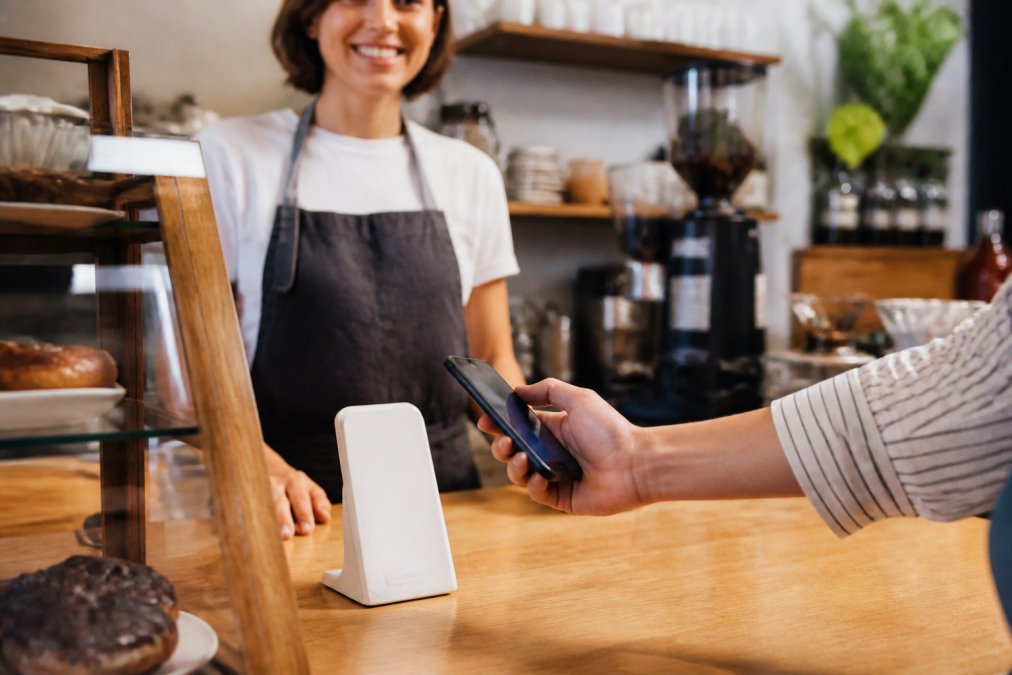
Placement decides whether your stand gets used. Put it where the customer's hands already are when they're paying or waiting, with a free hand and a few spare seconds.
Good spots include:
- Next to the card reader at checkout, angled toward the customer
- On the reception desk, facing the customer rather than the staff
- At the salon chair or barber station, within reach of the seated client
- On the table with the check presenter
- At the pickup counter for auto and repair shops
- Beside the exit sign at a clinic or dental office, where patients pause before leaving
Match the Spot to the Dwell Time
The best placement depends on how long the customer lingers:
- High-turnover counters (coffee shops, delis, food trucks): Put the stand at the payment point. The customer is already holding their phone to pay.
- Appointment-based businesses (salons, barbers, clinics): Place the stand at the chair or treatment room, not the front desk. The customer is relaxed with a free hand.
- Table-service restaurants: Clip a small stand to the check presenter or place it beside the card reader. The review happens before the customer stands up.
- Auto and repair shops: Put the stand at the pickup counter, where the customer is already reviewing the invoice.
Keep It Visible and Clean
A stand that's smudged, tilted, or lying flat reads as clutter, and customers won't touch it. Wipe the surface with a soft, damp cloth during daily closing, and avoid abrasive cleaners that scratch the finish.
Rotate Placement If Taps Drop Off
If taps slow down, move the stand a few inches rather than replacing it. A small shift, closer to the card reader, angled toward the customer's dominant hand, often restores attention, since customers stop seeing objects that never move.
How to Ask Customers for Reviews Without the Awkwardness
"If you enjoyed today, you can tap your phone right there and leave us a note. It takes about ten seconds."
A few more habits:
- Ask once. Repeating the request feels pushy.
- Never watch them do it. Hand it over and step back.
- Train everyone on the same line. Consistency beats cleverness.
- Take the no. Some customers won't leave a review, and that's fine.
NFC vs. QR Codes: Which Gets You More Google Reviews?
NFC wins on speed, and speed decides whether a review gets written.
| Factor | NFC Stand | QR Code |
|---|---|---|
| Steps to open your page | Hold phone, tap notification | Open camera, aim, wait, tap link |
| Works in low light | Yes | Often struggles |
| Needs an app | No | No |
| Readable from across the room | No | Yes |
| Works on very old phones | No | Yes |
| Reusable without reprinting | Yes | Yes |
| Feels like a normal phone action | Yes | Feels like a task |
Troubleshooting Older Phones, Durability, and Privacy Questions
Three questions come up again and again. Here are straight answers and the fixes that work.
Will Older Phones Work?
Most phones made in the last several years read NFC, including iPhones from the X onward and most mid-range Android devices. Very old or budget phones may not have an NFC reader, and some have NFC turned off by default.
- Ask them to unlock the screen. NFC on most phones only reads when the screen is awake.
- Move the phone slowly across the face of the stand. Don't press down, slow movement finds the reader faster than force.
- Check that NFC is enabled. On iPhone it's on by default. On Android, look under Settings > Connected devices > Connection preferences > NFC.
- Try a different part of the phone. iPhones read from the top edge; Android readers vary by model.
- Fall back to the QR code. Keep a printed QR code nearby for phones that don't read NFC.
How Durable Is the Stand?
NFC stands have no battery, no screen, and no moving parts, so there's nothing to wear out. The chip is sealed inside the housing, and normal counter use, spills, and daily handling won't affect it.
A few habits keep it in good shape:
- Wipe the surface with a soft, damp cloth. Avoid abrasive cleaners and scrubbing pads.
- Keep it out of a hot dishwasher or a soaking sink.
- Don't leave it in direct sun for hours, which can fade the printed surface.
- Check the printed call-to-action every few months and reorder if the text becomes hard to read.
Is There a Privacy Concern?
No. The chip holds a link and nothing else. It doesn't collect data, store customer information, or track who tapped. The customer's phone reads the link, opens your page, and that's the end of it.
Tracking Taps and Reviews
How do you know the stand is working? The chip doesn't report anything, but you can still measure results.
- Compare review volume before and after placement. Pick a two-week window before the stand goes on the counter and a two-week window after. A jump in new reviews is the clearest signal.
- Watch for a spike on specific days. If reviews cluster on weekends, the stand is getting more attention during busy shifts.
- Ask new reviewers how they found you. A simple "How'd you hear about us?" on the follow-up call or email catches the customers who tapped.
- Use your Google Business Profile dashboard. It shows review counts over time, enough to see whether the stand is moving the needle.
Conclusion
The hard part of getting reviews was never the ask. It was the ten seconds of typing that came after it. NFC stands close that gap, and setup is short enough to finish before your next customer walks in.
Frequently Asked Questions
Do customers need to download an app to use an NFC review stand?
No app is required. NFC stands store a link that a compatible phone reads through its built-in NFC reader. When the customer holds their phone near the stand, a link notification appears, and they tap it to open your Google review page in their browser. Tapnivo cards and stands work this way, so there is nothing for customers to install and no monthly subscription for you to manage.
Are NFC review stands compatible with all smartphones?
Most phones made in the last several years support NFC reading, including recent iPhone and Android models. Older devices may lack NFC or need it enabled in settings. Before you rely on a stand at your counter, test it with a few different phones. If a customer's phone does not read the stand, you can still share your review link by text or email as a backup.
How do I get more Google reviews without pressuring customers?
Ask right after a positive moment, keep the request short, and make leaving a review easy. A simple line like "If you enjoyed your visit, a quick Google review helps us a lot" works well when paired with an NFC stand the customer can tap in seconds. Never offer discounts or gifts in exchange for reviews, since Google's policies prohibit review incentives.
Where is the best place to display an NFC review stand?
Put it where the customer is already pausing: the checkout counter, front desk, reception area, or table. Placement matters more than the hardware itself. If the stand sits in a back office, nobody taps it. Keep it within arm's reach of the person handling payment or wrapping up the appointment, and mention it out loud so customers notice it.
This article is provided for general informational purposes. Tapnivo is an independent provider of NFC review products and is not affiliated with, endorsed by, or sponsored by Google.